How to play Metin2 on a MacBook: Fusion, UTM, Parallels and Wine
Metin2 on Intel and Apple Silicon MacBooks: Windows setup in Fusion and UTM, Parallels alternatives, launcher issues, anti-VM and GitHub projects.
Choose the right setup for your Mac
On a MacBook, you can try the Windows Metin2 client in a Windows virtual machine or through Wine. First identify whether your Mac has Intel or Apple Silicon: on an M-series Mac, Fusion and Parallels need Windows 11 ARM, not ordinary x64 Windows. VMware Fusion is a free alternative to Parallels; UTM is another option. Installing Windows alone does not establish that a particular Metin2 client can log in and keep running reliably.
This procedure draws on vendor documentation and specific community experiences checked on 26 October 2026. It is not our own Mac gameplay test. We therefore distinguish creating a VM, getting the launcher to work, entering the game and maintaining a stable session. For private servers, compatibility applies to the particular client and its protection system.
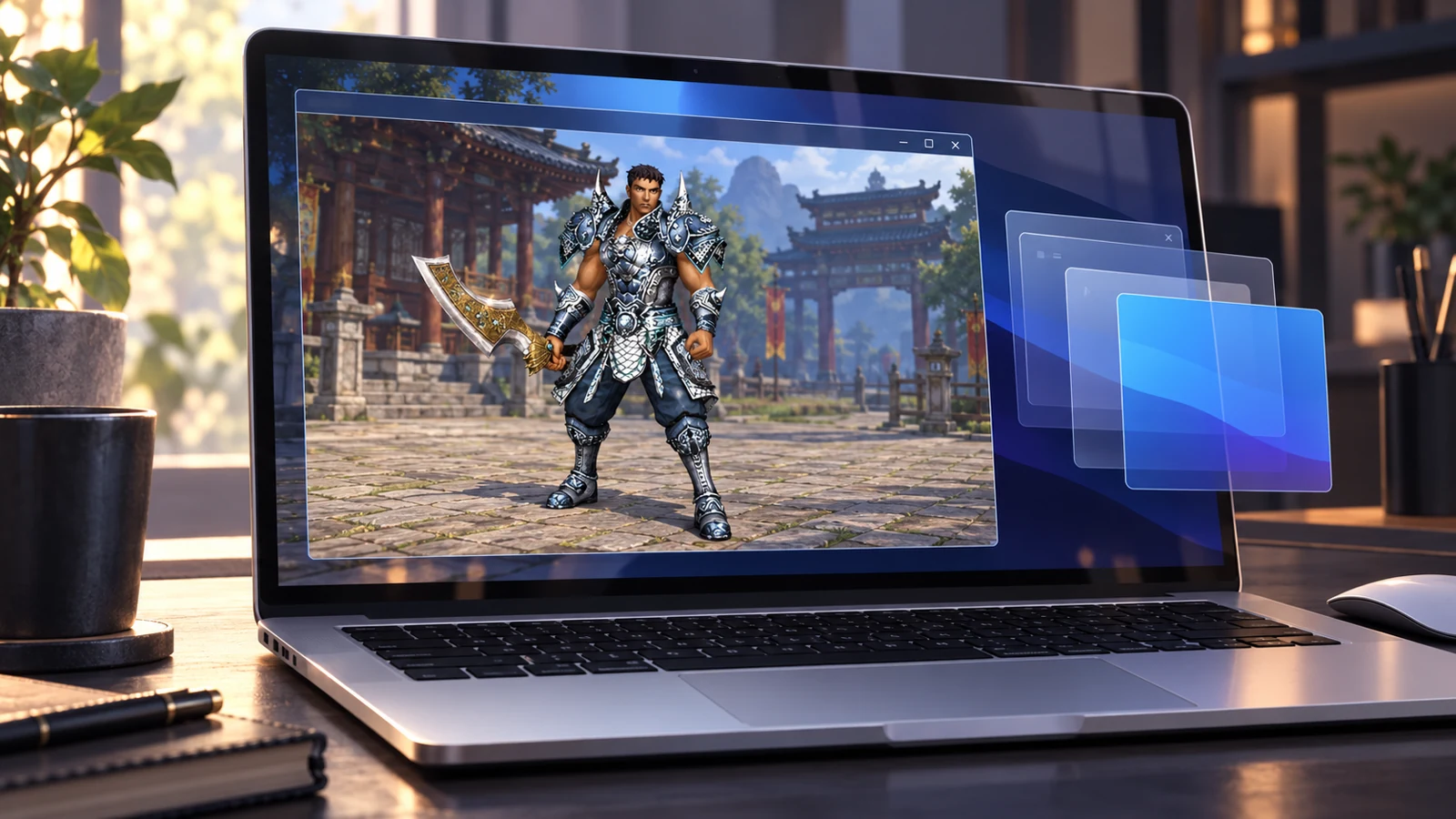
Generated illustration based on Metin2 game references. It is not a screenshot or proof that a particular client is compatible.
Choose the right route first
Find the chip under Apple → About This Mac. Apple M… identifies Apple Silicon; Intel identifies a different architecture. The chip matters, not just the purchase year.
| Route | Tool cost | What you need Windows for | What to verify for Metin2 |
|---|---|---|---|
| VMware Fusion | Free | Your own valid license; Apple Silicon uses ARM64 Windows | Graphics, launcher and compatibility with the client's protection |
| UTM 5 | Free from the project; the App Store is a paid distribution | Your own valid license | The experimental graphics driver and the particular game |
| Parallels Desktop | Paid product | Your own valid license; Apple Silicon uses ARM64 Windows | The particular client and protection; paying is no guarantee of compatibility |
| CrossOver | A 14-day trial, then paid | No separate Windows installation | Wine, renderer and launcher compatibility |
| Sikarugir | Free Wine wrapper | No separate Windows installation | The Wine engine, renderer and individual game windows |
| Boot Camp | Included on supported Intel Macs | Windows on a separate partition | The older Windows 10 and its current support; this route is unavailable on Apple Silicon |
According to VMware's announcement, Fusion is free for personal, educational and commercial use. That does not include a Windows license. With paid applications, distinguish a trial from a permanently free version; creating new accounts to repeat trials is not part of this guide.
1. Prepare storage, Windows and the correct client
- Update macOS to a release supported by your chosen hypervisor. Back up important files before making changes.
- Prepare a valid license for the Windows edition you will install. An official ISO is not itself a license key.
- Check free space. Microsoft specifies at least 64 GB of storage and 4 GB of RAM for Windows 11; you also need room for updates, the client and any VM copy. macOS and the Windows guest share the Mac's physical memory.
- Download the client from Gameforge or the verified website of the particular private server. You do not need someone else's preconfigured VM with the game already installed.
- Before buying a paid tool, check whether the server's community or support documents a specific successful setup. Record the Mac chip, macOS, hypervisor, Windows build and client version; “it works on Mac” is not enough.
Windows 11 requirements, Apple Silicon/ARM64 ISO, x64 ISO for Intel.
2. Main free route: VMware Fusion on Apple Silicon
The following sequence follows Broadcom's installation procedure. Menu wording can vary slightly between releases.
- Open the VMware Fusion distribution through the official download page. Broadcom requires a login or registration for its free portal.
- Download a release for your macOS, open the DMG and install Fusion. Read the license and system prompts; do not use an arbitrary modified installer.
- In Fusion, select File → New → Get Windows from Microsoft. This feature is available in supported Apple Silicon releases from Fusion 13.5 onward. It downloads the correct Windows architecture.
- Choose the edition matching your license. The vendor's example uses Windows 11 Pro; that does not mean Metin2 itself requires Pro. If you supply your own ISO, it must be ARM64.
- Finish creating a UEFI VM with a virtual TPM and the required encryption. Keep the VM password safely; some changes and transfers will require it.
- Create a virtual disk meeting at least the Windows requirements, with space left for the game. Treat recommended CPU/RAM settings as a starting point, not a performance result for your setup.
- Run Windows Setup, select the correct edition and finish installation. Then install Windows updates and restart.
- In the virtual machine menu, choose Install VMware Tools. Open the mounted installation media in Windows, finish installation and restart again.
The Fusion feature table lists accelerated DirectX 11 graphics on Apple Silicon from Fusion 13.5 onward. An older Fusion 13.0 guide without this support describes a different setup.
3. Install Metin2 and finish a real first test
- In a browser inside the Windows VM, download the current Gameforge client or the private server's own patcher. Installing only in macOS or in another Wine application is a different installation.
- Install the launcher, let its updates finish, then install or repair the game client. Do not add
pack,libor DLL files from another server. - For the first attempt, use windowed mode and a modest resolution in the supported client configuration. Start with one client; test additional windows only after basic stability.
- Log in, create or select a character and enter the world. An open launcher on the desktop is only the first milestone.
- Check movement, combat, inventory, chat and any web-based windows you need. Then test changing maps or channels and launching the client again.
- During a longer session, watch for repeated disconnects or crashes. Record how long and under what conditions you actually tested; a short successful login does not verify hours of play or multiple clients.
If support needs basic details about the Windows guest and graphics, these read-only commands can be run in its PowerShell:
[System.Runtime.InteropServices.RuntimeInformation]::OSArchitecture
Get-CimInstance Win32_OperatingSystem | Select-Object Caption, Version, BuildNumber
Get-CimInstance Win32_VideoController | Select-Object Name, DriverVersion
The output may include the name of the virtual graphics adapter. That alone does not explain a particular crash, just as high FPS on an empty map does not verify performance in town. Supply the exact error and the matching syserr.txt timestamp when reporting it; do not share actual accounts, passwords or other private information.
4. Free alternative: UTM 5 and experimental graphics
The old claim that “UTM cannot do Windows 3D” no longer describes UTM 5.0.8 accurately. The project documents experimental DirectX graphics for Windows 11. It also explicitly notes limited game compatibility and possible instability. DX11 support alone does not establish that Metin2's older renderer works.
For a new test VM, follow the UTM guide:
- Get UTM from the project's official distribution. The free project download and paid App Store edition are different distribution routes for the same application.
- Prepare the correct Windows 11 ISO: ARM64 for Apple Silicon, x64/AMD64 for Intel.
- Open + → Virtualize → Windows. On Apple Silicon, this does not create x86 Windows; emulating that architecture is a different, more demanding route.
- Set memory and CPU with both Windows requirements and macOS resources in mind. Select the ISO, enable Install Windows 10 or higher and Install drivers and SPICE tools, and prepare the disk.
- Finish the wizard, wait for Guest Tools to download and start Windows installation. The project recommends a fresh installation for experimental graphics.
- Following the current graphics documentation, use the QEMU backend, a GPU-accelerated display card whose name ends in
-gl, and Renderer Backend Default or ANGLE (Metal). DirectX Driver must not be Disabled; select the experimental driver during Guest Tools installation. macOS 13 or later is required. - Restart Windows, then repeat the client installation and test from the previous section. If the older driver or graphics backend produces an error, first follow UTM's documentation rather than importing a random registry file.
Check the changelog for any newer release. We did not test Metin2 on UTM ourselves for this guide, so we make no promise about smoothness or compatibility with a particular server.
5. What changes on an Intel MacBook and with Parallels
On an Intel Mac, Fusion needs x64 Windows, not Windows ARM. Manually install the correct ISO through the new VM wizard; Broadcom's table does not list the Get Windows from Microsoft feature above for Intel. After Windows and VMware Tools are installed, the launcher and game tests are the same.
Parallels on Apple Silicon still requires Windows ARM. Its wizard can download Windows automatically or use a suitable ISO. Next come Parallels Tools, Windows updates and installation of the actual client. Check the particular settings in Parallels support; paying for a VM does not change the architecture of a game's protection driver.
Boot Camp is only for supported Intel Macs. Apple's guide installs Windows 10 on its own partition, not in a VM. It is unavailable on M-series chips. Standard support for Windows 10 Home/Pro ended on 14 October 2025; the availability of any particular further update program must be considered separately. We therefore do not turn a historical Boot Camp procedure into a universal recommendation for a new system in 2026.
6. Wine: CrossOver, Sikarugir and “Loading interface”
Wine does not install a complete Windows VM. It translates interfaces needed by Windows applications, so its compatibility differs from Fusion's. CrossOver offers a fully functional 14-day trial and is paid afterward. Before buying a license, test your particular patcher, game world and required windows.
The free Sikarugir is another Wine wrapper. The project requires macOS 14.6+ and Rosetta 2 on Apple Silicon. Start at its repository and officially linked distribution; the README explicitly warns about a similarly named unaffiliated domain. Choose the Wine engine and graphics backend for the application; an arbitrary universal “Metin2 for Mac” bundle does not offer the same evidence.
For the Wine route, separate creating the wrapper/bottle, installing the launcher and starting the game. Do not change several renderers at once or move registry settings from another bottle: you would lose track of which step changed what. The verified material does not document an exact click-by-click procedure for the current Sikarugir Creator sufficiently, so we do not invent one here.
In a discussion dated 3 October 2026, a player using the official Gameforge client described the launcher getting stuck at Loading interface. They reported that switchRendererToSoftware.reg, supplied with the launcher, helped. You can investigate that particular community workaround as follows:
- Close the Gameforge launcher in that bottle and make a copy or backup of the bottle.
- Look for the named
.regfile in this launcher's installation. If it is absent, do not download a substitute from an arbitrary link or invent its contents. - Open it as text first and read what it changes. If you do not understand the changes, keep the backup and discuss them with the application's support.
- Import it into the registry of the same Wine bottle containing the launcher. This is not a change to host macOS or a Fusion anti-VM setting. In CrossOver, Registry Editor can be started for that bottle through Run Command, then its Import function used; CodeWeavers' Registry Editor guidance shows that workflow.
- Restart the bottle, open the launcher and repeat the actual game test. The original post did not report a fixed Item Shop; do not generalize launcher success to every game window.
We did not independently verify the file's contents or this workaround's functionality. Further Sikarugir player experiences also report varying results. The unmaintained Whisky should not be presented as a current universal solution.
7. When the client rejects a VM: registry settings and GitHub hardeners
First distinguish two obstacles. A virtual-machine message can mean VM detection. A failing protection driver may instead have a different architecture. Microsoft confirms that Windows 11 ARM emulates x86/x64 applications, but not their kernel drivers. Those need ARM64 builds. Renaming a registry entry cannot turn an x64 driver into an ARM64 driver.
On forums, “hardening” sometimes means reducing VM detection, rather than making the VM more secure. A historical MPCforum discussion also shows unsuccessful registry attempts and values returning after restart. It does not establish a current working fix for PangeaYT2 or other servers.
For readers interested in more advanced testing, these are real relevant projects:
| Project | What its own documentation states | How to assess it for this guide |
|---|---|---|
| VmwareHardenedLoader / current VMwareHardenedLoader-ng | Windows guest kernel driver, x64 and ARM64 builds; filtering of selected firmware strings and PnP registry enumeration | ARM64 runtime depends on the particular Windows build and undocumented kernel structures. Architecture support is not confirmation that Metin2 or a Fusion setup works. |
| VBoxHardenedLoader | Older VirtualBox loader for Windows x64; unmaintained since 2020, archived in 2023 | A historical technical reference. It is not currently verified for a new Apple Silicon MacBook, and Windows 11 blocks some dependencies. |
If you want to test a compatible project, follow the current README for the exact guest OS/build and use a recoverable test copy:
- Record the original error, server name and exact configuration first. Check its current rules too; whether an environment starts and whether it is permitted are different questions.
- Fully shut down the VM and create a snapshot or separate copy. Check that you can restore the original state. Backing up one registry key does not replace recovery from a kernel-driver change.
- Read the project's supported architectures, dependencies, loading method and uninstallation procedure. On ARM64, do not use an arbitrary x64 binary merely because ordinary Windows applications work under emulation.
- Change one thing at a time and test Windows startup, graphics, launcher, login and an actual session. Restore the snapshot after a crash; do not indiscriminately delete every entry containing VMware or remove the accelerated graphics driver.
- Report success only for your server, client and build. We did not run any listed project in this setup and have no basis for claiming it defeats every anti-VM system.
A source-project link is therefore a way to assess a particular experiment, not a promise to “download it and everything works.” No hardener needs to be added preventively to the main installation procedure.
What to prepare when you need help
Supply the client name and version, Mac chip, macOS, hypervisor/Wine engine, Windows build, graphics backend and precise failure point. Include the relevant end of the log with its timestamp and describe the last single change. Distinguish “cannot create VM,” “launcher will not start,” “protection rejects the client” and “game disconnects after login.”
From the private-server directory, continue to the particular project's actual website and support. Do not label a server “Mac compatible” without a documented current setup. A community guide such as the Parallels procedure for Shiva is a starting point for testing, not our or the operator's certification. Our article on Metin2 mobile clients covers a different development direction.
Frequently Asked Questions
Can I play entirely free without Parallels?
Why does the same server work on someone else's Mac?
Does a GitHub hardener guarantee that the game cannot detect the VM?
Related Pages
Find Your Perfect Server
Browse the top-ranked Metin2 private servers on METIN2.GG or submit your own server to the rankings.