Metin2 won't start: diagnose No Appropriate Device and 3D graphics errors
Diagnose Metin2 graphics startup errors: the documented Intel Arc fix, blank resolution lists, the actual game GPU and missing DirectX libraries.
Match the message before changing anything
If Metin2 stops at CREATE_NO_APPROPRIATE_DEVICE or “Sorry, your system does not support 3D graphics”, start with the exact message, GPU and available display modes. A powerful graphics card does not rule out a driver or client configuration problem. There is one clearly documented hardware-specific fix: Intel identifies a Metin2 launch issue on Arc A750/A770 in Windows 10/11 as fixed from driver 31.0.101.5085 onward. Other machines need a different diagnosis.
This guide covers Windows graphics initialization, including a Windows client supplied by a private server. It does not establish that every server uses the same renderer or configuration. For Mac virtual machines and Wine, use the separate MacBook guide: the virtual adapter or compatibility layer adds another variable.
| What happens | Start here | What the message does not prove |
|---|---|---|
CREATE_NO_APPROPRIATE_DEVICE | GPU/driver identity, then the modes offered by this client's configuration | That the GPU is too weak or that one DLL will fix it |
System does not support 3D graphics | Read the full message and matching log; check configuration and driver | That the computer lacks all 3D support |
A specifically named missing d3dx9_*.dll | The client's stated prerequisites and Microsoft's legacy runtime package | That every graphics error needs that package |
| The world opens, then FPS drops | Performance diagnosis for that client and scene | That a graphics-device startup fix will improve FPS |
The Gameforge troubleshooting wiki records the two launch messages separately. Its older control-panel instructions should not be treated as current Windows UI.
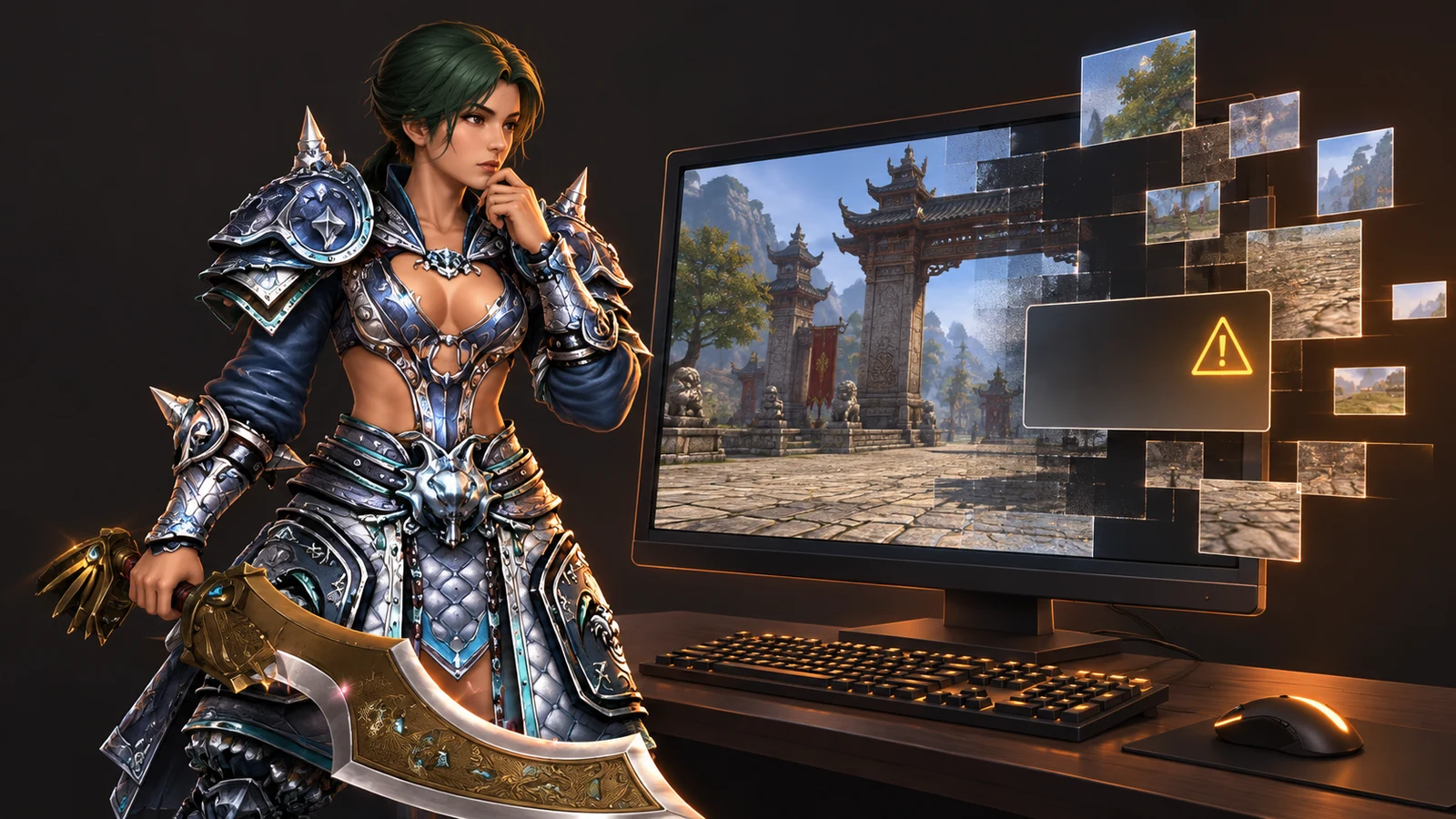
Generated illustration based on Metin2 game references. It is not an error screenshot or evidence of a successful repair.
1. Identify the adapter and installed driver
Close the game normally and restart Windows once if the error followed an earlier session. Record the server/client name, the error and when it occurs: after Play, before login or after changing a display setting. Keep a copy of any existing configuration before editing it.
Open Windows PowerShell from Start. These commands only read the Windows build and graphics-adapter information; they do not install anything or change settings:
Get-CimInstance Win32_OperatingSystem | Select-Object Caption, Version, BuildNumber
Get-CimInstance Win32_VideoController | Select-Object Name, DriverVersion
Interpret the actual model name. Intel UHD, Arc A750 and a virtual display adapter are different cases. More than one listed GPU does not tell you which one the game uses. Microsoft documents Win32_VideoController, including its driver-version property; non-WDDM hardware can return inaccurate values.
For a graphical report, search Start for dxdiag, open the Display/Render tabs available on your machine and note the adapter, driver and driver model. The DirectX number on the System tab describes the Windows runtime; it does not certify every optional library or this client's compatibility. Microsoft's dxdiag instructions explain the report. Review a saved report before sharing it: it can contain computer names and paths.
2. Check the documented Intel Arc case
Intel's Metin2 support article, last reviewed 14 October 2024, names Arc A750/A770, Windows 10/11, and the fix in 31.0.101.5085 or newer. That is the first fixed version in this report, not a recommendation to install that old driver today.
If this matches your hardware, compare the installed version and obtain a currently supported driver for your exact device from its manufacturer or laptop vendor. Follow that vendor's installation instructions, restart if requested and retry the same client with the same configuration. Record whether the error changes.
Do not apply this version threshold to Intel UHD, NVIDIA, AMD or every later Arc model. Intel's report also does not name every private-server executable. If your driver is already newer and the error remains, continue below; the version alone does not identify the cause.
3. Use a display mode the client actually offers
Open this installation's own configuration tool. For Gameforge, use the game's configuration entry in the launcher; a private server may supply a different tool or menu. Change settings for the client that fails, not an old folder belonging to another server.
- Record the current resolution, colour depth, refresh rate and screen mode, where those fields exist.
- Select a resolution actually present in the list. Do not type an arbitrary width and height into a configuration file.
- If a frequency selector is present, choose an offered value. 60 Hz is a useful initial test only when listed, not a number to force into a blank field.
- Try windowed mode, save, close the tool and start that client again. Change one setting at a time so a successful result has a useful explanation.
- If it opens, test the desired settings gradually. Keep the last working combination so you can return to it.
An empty resolution/frequency list or an “incorrect parameter” error is a reason to stop repeating the same save attempt. Check that the proper display driver is installed and that the configuration tool belongs to the current client. If the list remains empty, send its screenshot and hardware details to that client's support.
Why not prescribe 800×600 to everyone? A specific 2018 M2Dev source example checks a fixed 800×600 mode before initialization. Participants discuss changing or removing that check, and a later reply reports that the proposed change did not work. That explains one possible failure path in that historical code; it is not proof of the same code in today's Gameforge build or your private server. Players should not patch executables or force unsupported monitor modes from that thread.
4. On a two-GPU laptop, select the game executable
In Windows Settings → System → Display → Graphics, add or select the desktop application's executable. Choose the GPU preference available for that app, save and restart it. Menu wording varies by Windows build. Microsoft's graphics settings documentation describes these per-app choices; NVIDIA confirms that Windows preferences take precedence over its preferred-processor setting from Windows 10 20H1 onward.
The patcher, config tool and game can be different executables. A preference assigned only to the patcher does not configure another EXE. Identify the actual game process through Task Manager or ask the server team for its filename. Do not assume every private client is named metin2client.exe.
For a controlled test, try the named high-performance GPU, restart the client and record the result. If it fails, restore the previous preference before testing another offered GPU. This is a compatibility check, not a promise that the dedicated card always fixes this error. Disabling the integrated adapter in Device Manager is not required for this test.
If the game stays open, check the GPU engine column for its process in Task Manager. Add the column through the column-header menu if necessary, then match “GPU 0/1” to the model under Performance. Microsoft explains what these counters measure: GPU data needs a WDDM 2.0-or-newer driver, and an engine label identifies reported activity rather than a complete compatibility test. A client that exits immediately may leave no useful sample. A GPU shown in config.exe or a saved Windows preference alone does not prove active game rendering.
5. Distinguish DirectX from missing files
Windows can report DirectX 12 while an older application needs an additional D3DX library. Microsoft's DirectX End-User Runtimes (June 2010) installs optional legacy SDK components without replacing the Windows DirectX runtime.
Use this branch when the client's prerequisites or a specific missing-library message points to it. Follow the current Microsoft download instructions and the client's requirements. This is not a general cure for CREATE_NO_APPROPRIATE_DEVICE, and installing the package does not prove the issue is repaired. Do not substitute a single DLL downloaded from an unrelated site.
If the log instead names a missing pack, Python script or another client resource, use Gameforge's repair function or the named private server's own current patcher. Do not mix pack, lib, configuration or renderer DLLs between servers. A rendering wrapper supplied by someone else changes the test environment; it is not equivalent to installing Microsoft's optional runtime.
6. Read the matching log and send a useful report
If this client writes syserr.txt, open the file whose modification time matches the failed attempt. From PowerShell opened in that client folder, these read-only commands show its timestamp and last 30 lines:
Get-Item -LiteralPath .\syserr.txt | Select-Object LastWriteTime, Length
Get-Content -LiteralPath .\syserr.txt -Tail 30
A missing or empty file is a result to report, not a reason to invent an error. Private clients may use a different log location; check their documentation. Deleting the log does not repair the failure recorded in it.
Include the exact message, client/server and build if available, Windows build, GPU/driver, configuration screenshot and the result of each single change. If one server launches and another fails, name both client versions: it narrows the comparison but does not prove either cause. Remove usernames, private paths, tokens and account details before posting logs publicly.
The Gameforge DE discussion shows why that detail matters: one player reports a missing refresh-rate selection; another cannot save because of an invalid parameter. The reported IME change also fails for a later participant. These are different user outcomes, not a single verified fix.
What we verified, and where to go next
We checked the cited vendor documentation and original forum discussion, and executed the read-only PowerShell diagnostics, including a controlled sample-log check. We did not reproduce a failing Metin2 session on Arc A750/A770 or test every server's client. The driver fix is Intel's documented result; the configuration and GPU steps are diagnostic tests with explicit outcomes, not our own success-rate claim.
If support needs to investigate the client itself, stop after collecting those results rather than stacking registry edits, compatibility flags and replacement DLLs. For a different server, begin with its own current client and requirements; the Metin2 private-server directory helps locate the relevant profile. A successful launcher, login screen and stable world session remain separate milestones.
Sources
Frequently Asked Questions
Does No Appropriate Device mean I need a new graphics card?
What if the refresh-rate list is empty?
Why doesn't DirectX 12 in dxdiag rule out a missing D3DX library?
Related Pages
Find Your Perfect Server
Browse the top-ranked Metin2 private servers on METIN2.GG or submit your own server to the rankings.